Showing posts with label hacking. Show all posts

Thursday, 3 October 2013

Get free facebook likes best way

0 comments
Now Every One Want Facebook Fans Many peoples want fans for fun on page and many peoples want for their site Promoting 
And i found today i biggest Exchange Company which will give you hug of likes on Facebook and thousand of followers on Twitter…:)


Get Facebook Free Likes in some easy steps  


  • Click  Here and Signup for a account
  • Enter your username and email and password [Note your password must bi mix letter like example : (BSdhq45612)
  • After Signup you will get 100 free coins signup bonus.
  • Below Your Setting Click on FB icon
  • 1st Enter your Facebook Profile
  • Then Add your page
  • And Points choose 2 for per like cost
  • thats it now wait for a hour you will get 100 likes withing a hour

you can also refer you friends and can get more free facebook likes


Feel free to ask any sort of question post your comments and do find us on Facebook thanks  :) 

12 Useful And Handy Shortcuts

0 comments

1. Ctrl + C – Copy

Who can live without this shortcut? We are copying stuffs all the time.
And this keyboard shortcut is so much easier and faster than Right Click >> Copy.

2. Ctrl + V – Paste

If you copy, you need to paste. So instead of Right Click >> Paste, just hit Ctrl + V.

3. Ctrl + Z – Undo

Oops! You’ve just deleted a piece of text! How to make text magically reappear on screen? The magic words are: Ctrl + Z.

4. Alt, F, W, F – Create new folder in windows explorer

I still wonder why there is still no shortcut to create a new folder. So, this is actually not a keyboard shortcut, but a trick shortcut.
Alt – goes to the menu
F – Selects “File” beside “Edit”
W – Selects “New”
F – Selects “Folder”.

5. Windows Logo + E – Open computer

You know that windows logo button between Ctrl and Alt on the bottom left of the keyboard? If you press Windows Logo + E, it will open the computer.
No, not automatically disassemble the computer and unscrew it, :P but open the window where you will see the disk drives and the CD Rom.

6. Windows Logo + D – Show desktop; minimize all windows

You know when you have so many windows open, and you need to go to the desktop to open a program?
You don’t need to minimize every single window one by one again. Just press Windows Logo + D and you will arrive on the desktop.

7. Tab – Go to next text area

When filling forms on the web, especially username and password forms, this goes extremely handy.
When logging in, after typing the username, just hit “Tab” and tada! – you are at the password form without touching the mouse!

8. Typing name of file you’re looking for – Locating file

Lets say you are in a folder called ‘Pictures’ and you want to locate a file photo called “mejumping.jpg”, just type “mejum…”. Usually you don’t need to type the file’s entire name – just some of its first letters will do.

9. Ctrl + Click – Individually selecting multiple files

Lets say you are on a folder with lots of photos. You only want to select your good photos. How? Click a good photo. Then, Ctrl + click another good photo. Next, Ctrl + click another good photo!
See? It doesn’t unselect the previous files but adds the next files you have clicked to the selection!

10. Shift + Click – Select files from one end to another

You are on a p

How To Get High Speed Internet Browsing For Easy

0 comments
Hey Friends! here is the new windows xp trick. your internet Speed is very slow? dont worry! try this cool registry hack. you can speed your internet connection speed up to 20% :D i thin you are like this registry hack. comment form is open..
Now you can do this with the registry entries below:


Windows Registry Editor Version 5.00
[HKEY_LOCAL_MACHINE\SYSTEM\CurrentControlSet\Services\
Dnscache\Parameters]
"CacheHashTableBucketSize"=dword:00000001
"CacheHashTableSize"=dword:00000180
"MaxCacheEntryTtlLimit"=dword:0000fa00
"MaxSOACacheEntryTtlLimit"=dword:0000012d


Note: Make a new text file and  rename it to dns cache reg  then copy and paste the above into it and save it  merge it into the registry.

Hide File in Picture

0 comments
In order to accomplish this task, you will need to have either WinZip or WinRAR installed on your computer. You can download either of these two off the Internet and use them without having to pay anything. Here are the steps for creating your hidden stash:
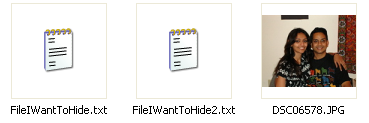
  • Create a folder on your hard drive, i.e. C:\Test and put in all of the files that you want to hide into that folder. Also, place the image that you will be using to hide the files in.
hide file in jpg
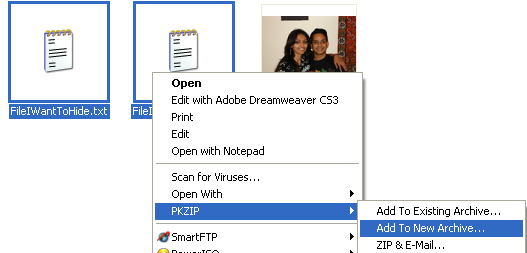
  • Now select all of the files that you want to hide, right-click on them, and choose the option to add them to acompressed ZIP or RAR file. Only select the files you want to hide, not the picture. Name it whatever you want, i,e. “Hidden.rar”.
add to archive
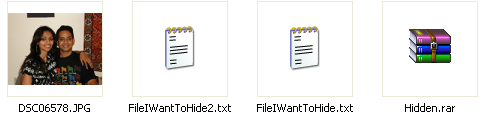
  • Now you should have a folder that looks something like this with files, a JPG image, and a compressed archive:
hidden rar
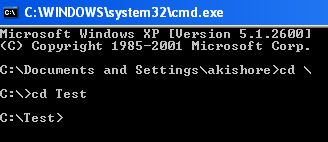
  • Now here’s the fun part! Click on Start, and then click on Run. Type in “CMD” without the quotes and pressEnter. You should now see the command prompt window open. Type in “CD \” to get to the root directory. Then type CD and the directory name that you created, i.e. “CD Test“.
cd test
  • Now type in the following line: “copy /b DSC06578.JPG + Hidden.rar DSC06578.jpg” and press Enter. Do not use the quotes. You should get a response like below:
hide files in jpg
Just make sure that you check the file extension on the compressed file, whether it is .ZIP or .RAR as you have to type out the entire file name with extension in the command. I have heard that some people say that they have had problems doing this with a .ZIP extension, so if that doesn’t work, make sure to compress to a .RAR file.
And that’s it! The picture file will have been updated with the compressed archive inside! You can actually check the file size of the picture and see that it has increased by the same amount as the size of the archive.
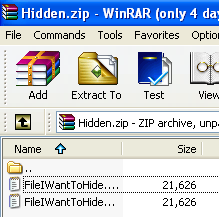
You can access your hidden file in two ways. Firstly, simply change the extension to .RAR and open the file using WinRAR. Secondly, you can just right-click on the JPG image and choose Open With and then scroll down to WinRAR. Either way, you’ll see your hidden files show up that you can then extract out.

winrar
That’s it! That is all it takes to hide files inside JPG picture files! It’s a great way simply because not many people know it’s possible and no one even thinks about a picture as having to the ability to “hide” files. Enjoy!

Advertisement


Copyright 2008 All Rights Reserved Revolution Two Church theme by Brian Gardner Converted into Blogger Template by Bloganol dot com